From: https://prajwaldesai.com/how-to-delete-an-application-in-sccm-2012/
How to delete an application in sccm 2012. The question is why do you want to delete the application that’s deployed to collections. The reason for deletion of application may be the users won’t require it anymore or another software might be replaced with it which has good features than the existing ones or it any be any other reason.. Well, if you try to right click the application and click delete, the application will not get deleted in SCCM 2012. There is a small procedure that you need to follow in order to delete the application. Lets take a look at it.
How to delete an application in sccm 2012. The question is why do you want to delete the application that’s deployed to collections. The reason for deletion of application may be the users won’t require it anymore or another software might be replaced with it which has good features than the existing ones or it any be any other reason.. Well, if you try to right click the application and click delete, the application will not get deleted in SCCM 2012. There is a small procedure that you need to follow in order to delete the application. Lets take a look at it.
How To Delete An Application In SCCM 2012
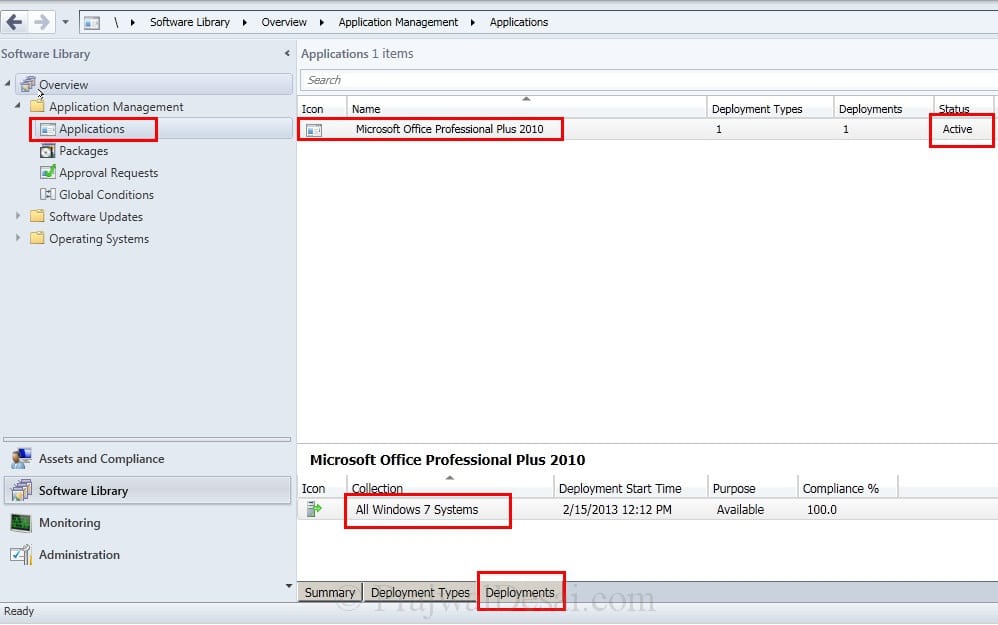
Launch the ConfigMgr Console, Click on Software Library, Application Management, Applications. In the previous post we had deployed Office 2010 using sccm to a collection. In this post we will be deleting this application from our sccm server.
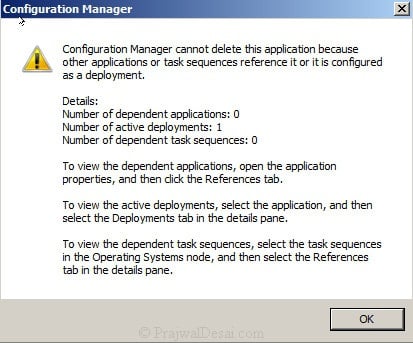
When we right click the application and select Delete, we get a warning message box. It clearly shows that the number of active deployments is 1 which means the application is deployed once. Click OK.
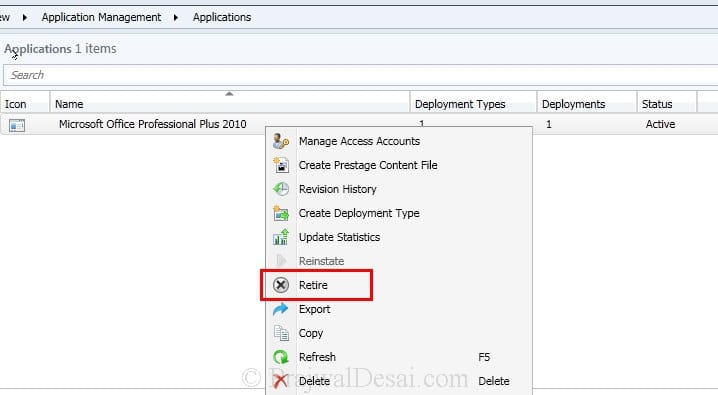
Before we delete the application its recommended to retire that application. To do so right click the application and click Retire.
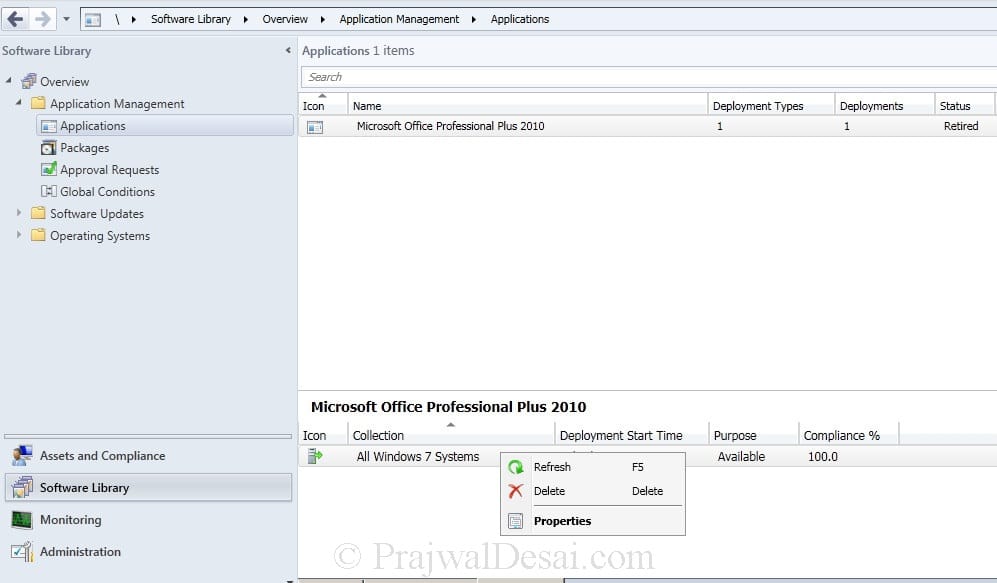
Next we click on Deployments and we see that the application is deployed to a collection named All Windows 7 Systems. Right click the Collection and click Delete.
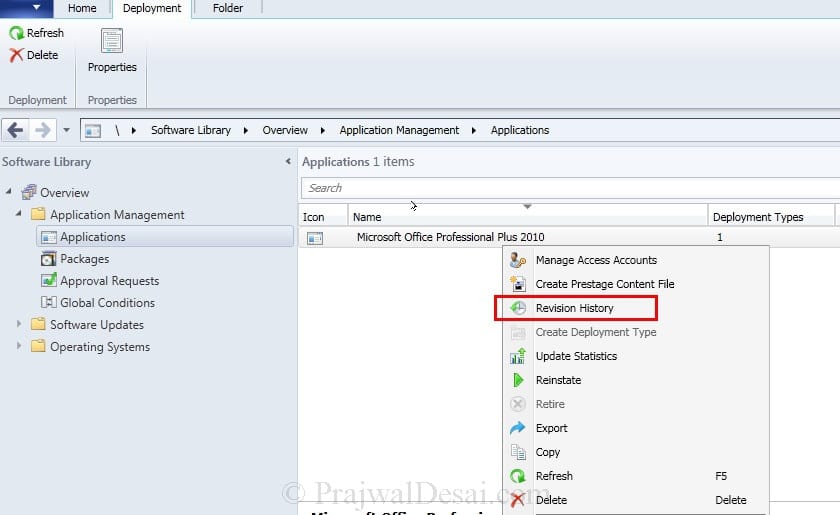
Right click the Application and click Revision History.
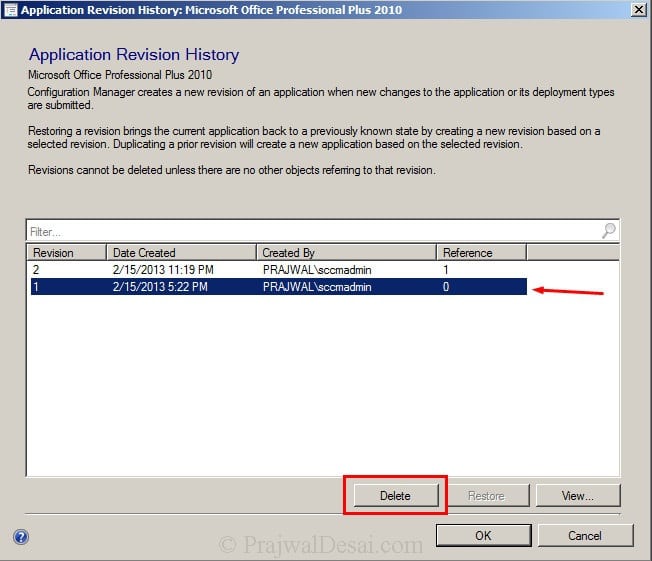
On the Application Revision History window, start deleting the revisions from the bottom.
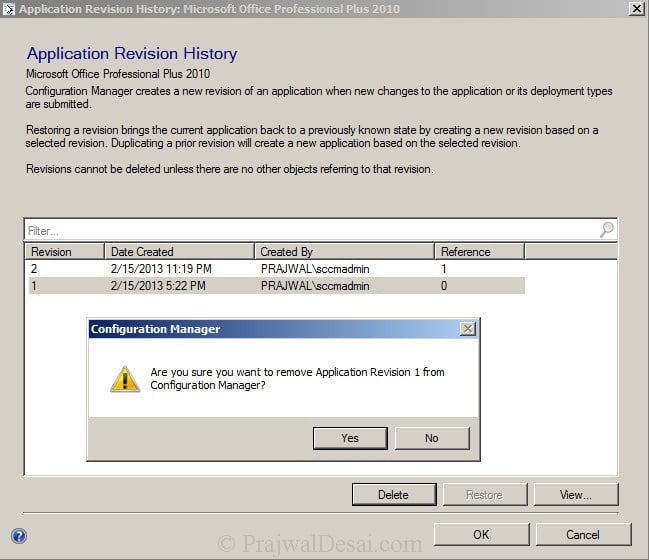
Delete all the revisions one by one.
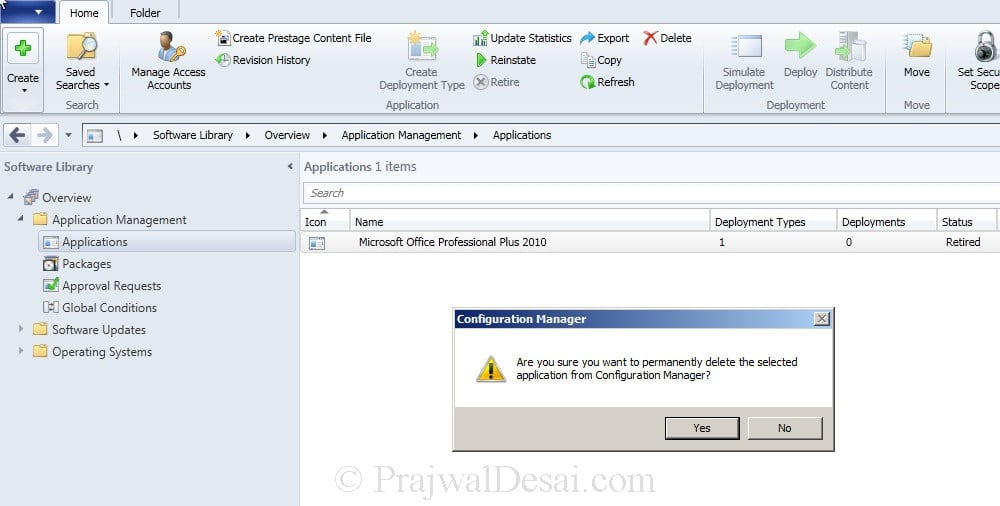
Once you have deleted all the revisions, right the application and delete it. You get a warning box, click Yes to delete the app permanently.
1 comment:
To delete an application in SCCM (System Center Configuration Manager), start by opening the SCCM console and navigating to the “Software Library” workspace. Under Application Management, select “Applications” to view the list of deployed applications. Just like choosing between natural and lab grown diamonds, it’s important to carefully review what you are removing to avoid deleting something critical. Right-click the application you want to remove and choose “Delete.” You may be prompted to confirm whether you want to remove the application from the site and all deployments. If the application is assigned to collections, SCCM will notify you to remove those references first. After confirming, SCCM will remove the application and its associated deployments. Always verify in the console that the deletion was successful to prevent future issues. Regularly cleaning up unused applications helps keep your SCCM environment organized and efficient.
Post a Comment