Tuesday, November 20, 2018

Monday, November 19, 2018
Photo Retouching Service Review - Portrait vs Still Life
The photo retouching market has exploded with online service offerings. Many of them are focused on the portrait market and fewer offer services for still life.
If you offer photo retouching services, provide your link below in the comments.
If you offer photo retouching services, provide your link below in the comments.
Thursday, November 15, 2018
Based on - https://prajwaldesai.com/install-configuration-manager-clients-using-client-push/
1.1 Client Push Account
The account that you add must have the permissions to install the client software, in other words the user account should have the local admin rights in the machine.
1. Launch the configuration manager console
2. click on Administration, under Site Configuration,
3. click on Sites, in the Sites list, select the site for which you want to configure automatic site-wide client push installation.
4. On the top ribbon click on Client Installation Settings and click on Client Push Installation.
5. On the Client Push Installation Properties windows
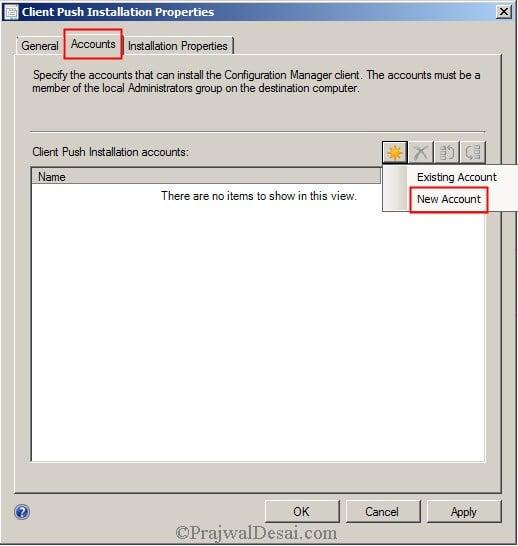
6. Click on Accounts tab, we need to add an user account with which the client installation happens. Click on yellow color icon and click on New Account.
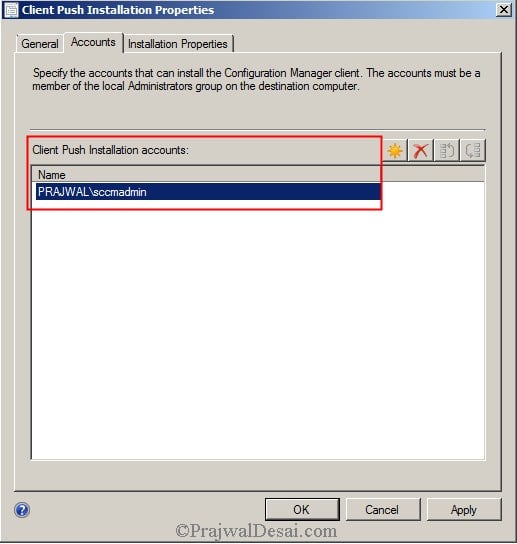
7. added a user account named Woodbourne\sccmadmin which is a member of domain admins group.
How to delete an application in sccm
From: https://prajwaldesai.com/how-to-delete-an-application-in-sccm-2012/
How to delete an application in sccm 2012. The question is why do you want to delete the application that’s deployed to collections. The reason for deletion of application may be the users won’t require it anymore or another software might be replaced with it which has good features than the existing ones or it any be any other reason.. Well, if you try to right click the application and click delete, the application will not get deleted in SCCM 2012. There is a small procedure that you need to follow in order to delete the application. Lets take a look at it.
How to delete an application in sccm 2012. The question is why do you want to delete the application that’s deployed to collections. The reason for deletion of application may be the users won’t require it anymore or another software might be replaced with it which has good features than the existing ones or it any be any other reason.. Well, if you try to right click the application and click delete, the application will not get deleted in SCCM 2012. There is a small procedure that you need to follow in order to delete the application. Lets take a look at it.
How To Delete An Application In SCCM 2012
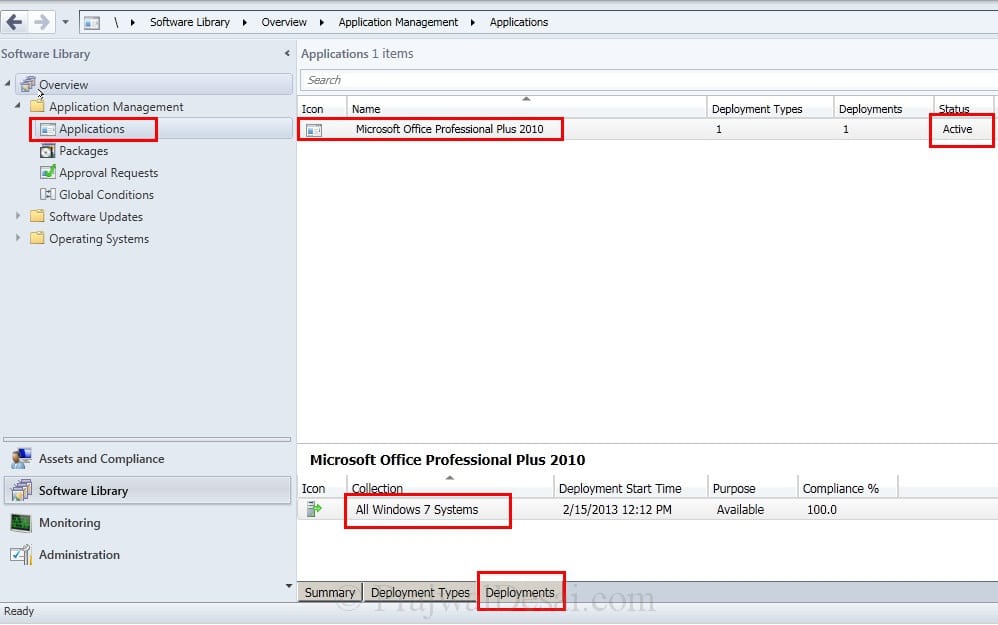
Launch the ConfigMgr Console, Click on Software Library, Application Management, Applications. In the previous post we had deployed Office 2010 using sccm to a collection. In this post we will be deleting this application from our sccm server.
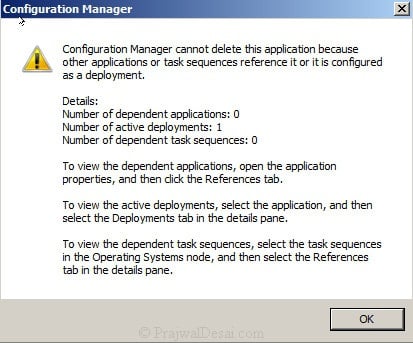
When we right click the application and select Delete, we get a warning message box. It clearly shows that the number of active deployments is 1 which means the application is deployed once. Click OK.
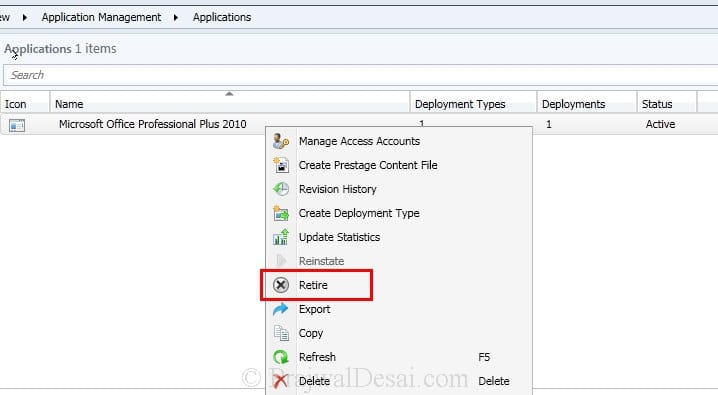
Before we delete the application its recommended to retire that application. To do so right click the application and click Retire.
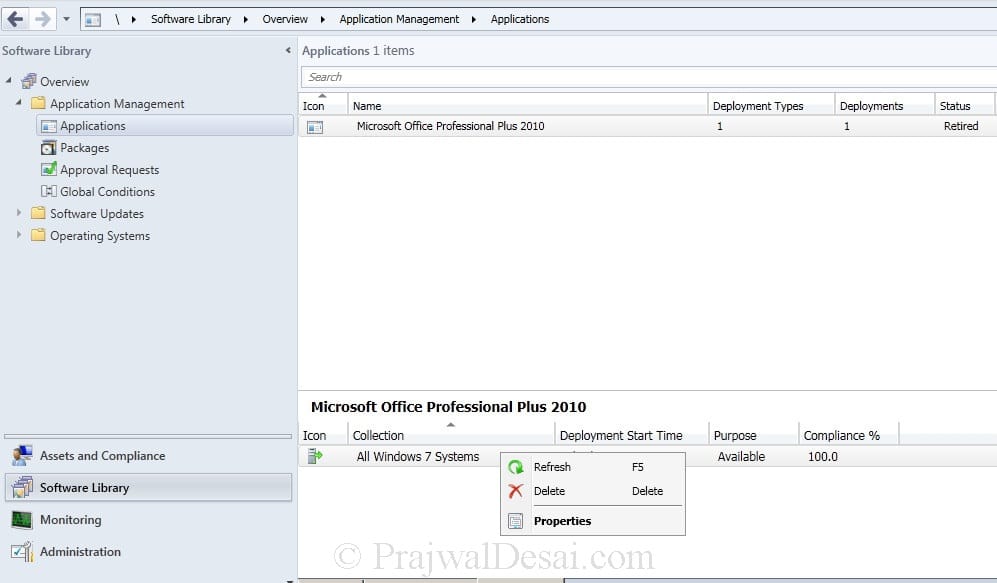
Next we click on Deployments and we see that the application is deployed to a collection named All Windows 7 Systems. Right click the Collection and click Delete.
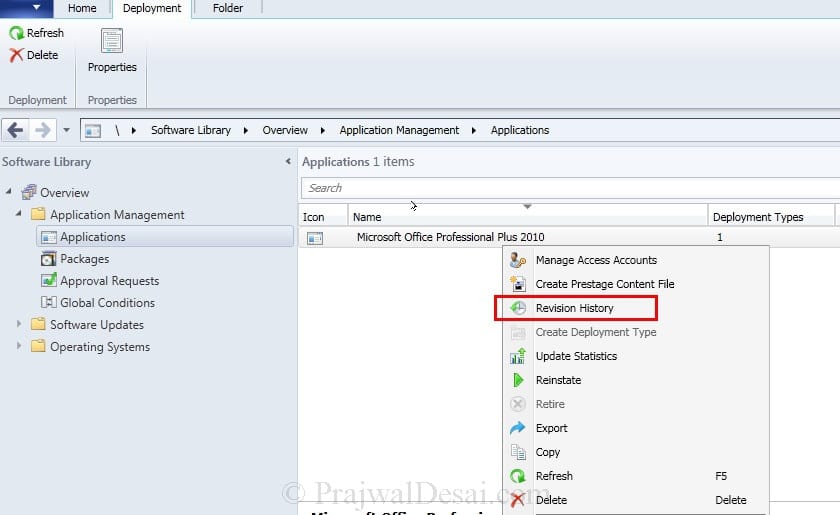
Right click the Application and click Revision History.
On the Application Revision History window, start deleting the revisions from the bottom.
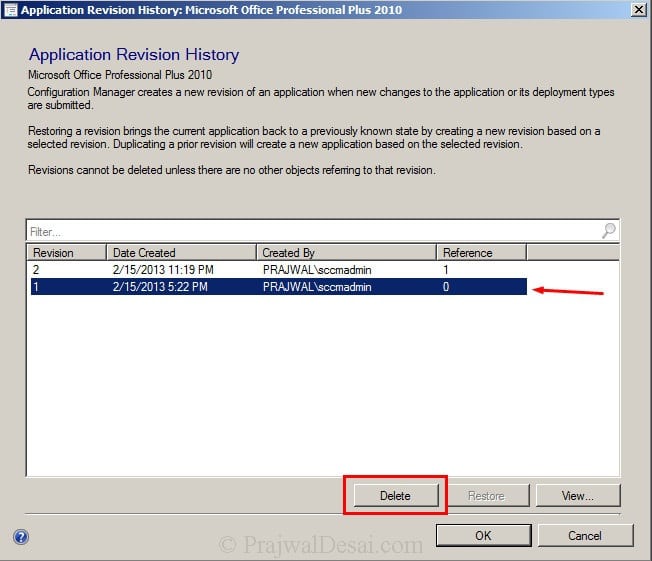
Delete all the revisions one by one.
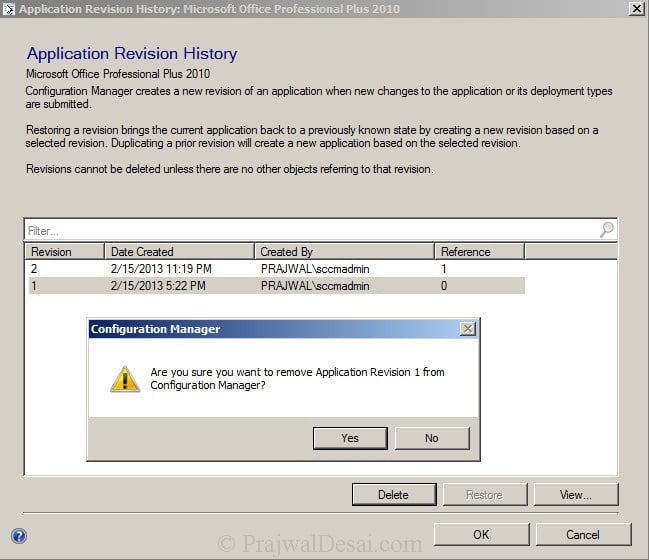
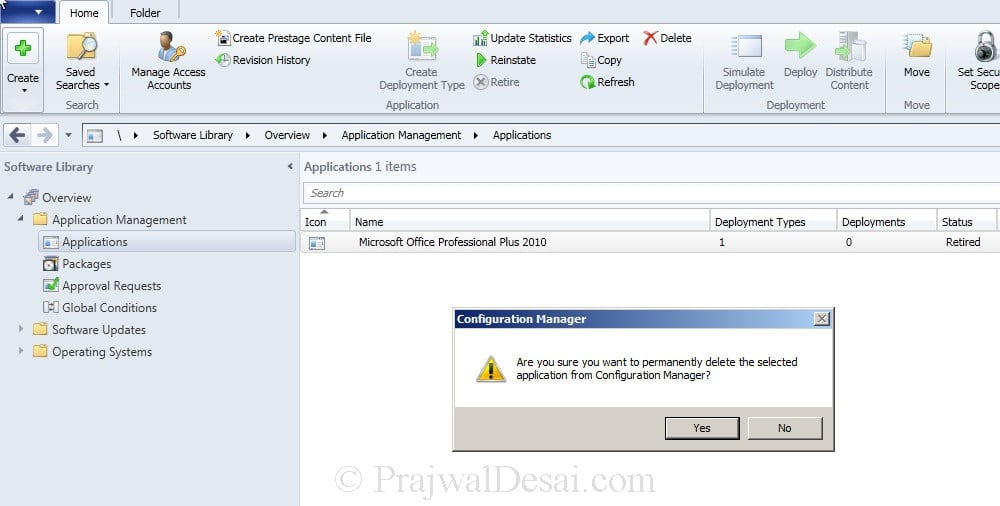
Once you have deleted all the revisions, right the application and delete it. You get a warning box, click Yes to delete the app permanently.
Wednesday, November 14, 2018
SQL - List Active Connections
SELECT
spid,
sp.[status],
loginame [Login],
hostname,
blocked BlkBy,
sd.name DBName,
cmd Command,
cpu CPUTime,
memusage Memory,
physical_io DiskIO,
lastwaittype LastWaitType,
[program_name] ProgramName,
last_batch LastBatch,
login_time LoginTime,
'kill ' + CAST(spid as varchar(10)) as 'Kill Command'
FROM master.dbo.sysprocesses sp
JOIN master.dbo.sysdatabases sd ON sp.dbid = sd.dbid
WHERE sd.name NOT IN ('master', 'model', 'msdb')
--AND sd.name = 'db_name'
--AND hostname like 'hostname1%'
--AND loginame like 'username1%'
ORDER BY spid
PowerShell - Restart WSUS
Stop-Service IISADMIN
Stop-Service WsusService
Start-Service IISADMIN
Start-Service WsusService
Stop-Service WsusService
Start-Service IISADMIN
Start-Service WsusService
PowerShell - SCCM Set Max Execution Time on Software Update Group
#Load Configuration Manager PowerShell Module
Import-module ($Env:SMS_ADMIN_UI_PATH.Substring(0,$Env:SMS_ADMIN_UI_PATH.Length-5) + '\ConfigurationManager.psd1')
#Get SiteCode and set Powershell Drive
$SiteCode = Get-PSDrive -PSProvider CMSITE
Set-location $SiteCode":"
$start = Get-Date
$cmsugs = Get-CMSoftwareUpdate -UpdateGroupName "Server-2018" -Fast | Select CI_ID, LocalizedDisplayName, MaxExecutionTime, LocalizedCategoryInstanceNames # | ft -AutoSize
$count = 0
Foreach ($SoftwareUpdate in $cmsugs){
if($SoftwareUpdate.MaxExecutionTime -ne 10800) {
$count += 1
#$SoftwareUpdate
Set-CMSoftwareUpdate -Id $SoftwareUpdate.CI_ID -MaximumExecutionMins 180
}
}
$finish = Get-Date
$seconds = ($finish - $start).TotalSeconds
$report = "count: "+ $count + " " + $start + ", " + $finish + ", " + $seconds + " " + "Ave: " + $seconds/$count
write-host $report